
Welcome to your ultimate guide for discovering the best solid state drive deals that provide incredible performance for your computing needs. With the right SSD, you can experience lightning-quick boot times and near-instant data access. As prices for flash memory continue to drop, now is the perfect time to invest in quality storage.
This guide will help you understand how an SSD works and where to find the most reliable deals online. We’ll explore key performance metrics, making it easy for you to compare different drives. You’ll also learn about the latest NVMe and SATA interfaces, helping you choose the best option for your setup.
By the end of this guide, you’ll know which SSD offers the best value for gaming, creative work, or everyday tasks. Let’s dive in and find the perfect drive that balances speed, capacity, and cost for your unique needs.
Key Takeaways
- Discover how an SSD can enhance your computer’s performance.
- Learn about the benefits of investing in flash memory storage.
- Understand key performance metrics to compare different drives.
- Explore the latest NVMe and SATA interfaces.
- Get practical tips for installation and compatibility checks.
Understanding Solid State Drives
Let’s take a closer look at what makes solid-state drives stand out in the world of data storage. A solid-state drive is a modern storage device that uses flash memory to store data persistently without any moving parts inside. Unlike an old-school hard disk drive that spins magnetic platters, an SSD uses NAND flash memory cells to hold your files, photos, and applications.
The magic happens through a tiny built-in controller that acts like a traffic cop, directing data flow between the memory and your computer system. When you save a document, the controller writes data to available memory cells at speeds that leave traditional hard drives in the dust. Reading data back is just as fast because there are no mechanical arms waiting to swing into position over a spinning disk.
This fundamental difference in how SSDs store data and retrieve it explains why your laptop boots up in seconds instead of minutes. The flash memory inside retains your data even when the power is completely off, making it perfect for both desktops and portable devices. Understanding this technology helps you appreciate why solid-state drives have become the go-to storage upgrade for so many users.
We will build on this foundation as we explore the different types and technologies that make each SSD unique in the sections ahead.
| Feature | Solid-State Drives (SSDs) | Hard Disk Drives (HDDs) |
|---|---|---|
| Speed | Faster data access and boot times | Slower due to mechanical parts |
| Durability | More resistant to physical shock | Susceptible to damage from drops |
| Noise | Silent operation | Can be noisy due to moving parts |
| Power Consumption | Lower power usage | Higher power consumption |
| Data Retention | Retains data without power | Requires power to maintain data |
Solid State Drive Technologies and Types
Dive into the intricate world of SSD technologies and discover how they can elevate your computing experience. Not all SSDs are created equal, especially when it comes to performance. Understanding the various types of NAND flash memory is crucial for making an informed choice.
NAND Flash Types
Single-level cells, known as SLC, store just one bit of data per cell. They deliver the fastest speeds and longest endurance, making them ideal for demanding workloads. Next, we have multi-level cells (MLC), which double the storage per cell to two bits. This offers a balanced mix of cost and reliable performance.
Triple-level cells, or TLC, pack three bits into each memory cell. They have become the sweet spot for most consumer SSDs on the market today. Finally, quad-level cells (QLC) push capacity even further, storing four bits per cell. While they are the most affordable option for bulk data storage, they come with a trade-off in write endurance and speed.
NVMe vs SATA: Understanding Interfaces
Beyond the flash memory types, the interface technology matters just as much. NVMe SSDs connect through the PCIe bus, unleashing breathtaking read and write speeds that can exceed 3000 MB/s. This makes them a top choice for serious performance enthusiasts.
On the other hand, SATA SSDs utilize the older Serial ATA interface. They top out around 600 MB/s, making them a solid and budget-friendly upgrade from traditional hard drives. Choosing between these technologies depends on your specific needs, and we will help you match the right type to your workload in later sections.
Comparing Solid State Drives to Hard Disk Drives
Now it’s time to compare the performance of SSDs and traditional hard disk drives. Understanding the differences between these storage options can help you make an informed decision.
Performance Differences
The performance gap between SSDs and hard disk drives is staggering. A typical hard disk spins at 5400 or 7200 RPM, while an SSD accesses data electronically without any mechanical delay. This results in significantly faster performance.
Random access times illustrate this clearly. SSDs clock in at an impressive 0.05 to 0.2 milliseconds, compared to 2.9 to 12 milliseconds for disk drives. Sequential read and write speeds on modern NVMe SSDs can reach up to 14,800 MB/s, while hard disks generally top out around 200 MB/s.
Reliability and Longevity Comparison
Beyond speed, reliability is another area where SSD technology shines. Unlike traditional hard disk drives, SSDs have no fragile moving parts that can wear out or break. Hard disks rely on spinning platters and delicate read/write heads that can fail from simple bumps or drops.
SSDs handle physical shock far better, making them a safer choice for laptops and portable devices. Additionally, high-performance SSDs use about half to a third of the power that comparable hard disks require. This efficiency contributes to longer battery life in portable devices.
Noise is another advantage. SSDs operate silently, while traditional hard drives produce sounds from spinning disks and moving heads. When considering performance, reliability, power efficiency, and silent operation, the case for upgrading from an HDD to an SSD becomes crystal clear.
SSD Form Factors and Interfaces
Understanding the different form factors and interfaces of SSDs is crucial for maximizing their potential. SSDs come in various shapes and sizes, each designed for specific applications and systems. Choosing the right form factor ensures that your SSD fits perfectly and connects seamlessly to your device.
2.5-inch SATA SSDs
The classic 2.5-inch SATA SSD remains a popular and affordable choice. These drives are designed to replace older hard disk drives easily. They use the familiar SATA data and power cables, making them the simplest drop-in upgrade for both desktops and laptops.
Because of their widespread compatibility, 2.5-inch SATA SSDs are an excellent choice for users looking to enhance performance without extensive modifications to their systems.
M.2 and PCIe NVMe SSDs
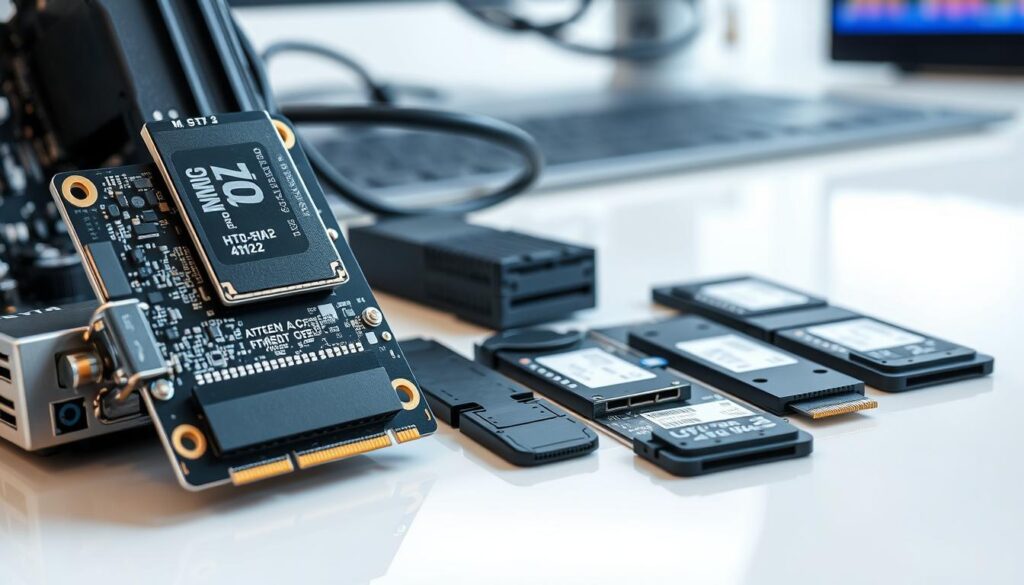
Stepping up to modern performance, M.2 NVMe SSDs are tiny sticks that plug directly into your motherboard. They deliver blazing-fast speeds, often surpassing traditional SATA SSDs. M.2 drives come in various lengths, such as 2230, 2242, 2260, and 2280. Always check your device specifications before purchasing to ensure a proper fit.
Many high-performance M.2 SSDs include a heatsink to manage temperatures during intense workloads. This is especially beneficial for gaming or creative tasks where heat can impact performance.
Internal vs External SSDs
Internal SSDs reside within your system for permanent storage, while external SSDs connect via USB or Thunderbolt for portable data access. External solid-state drives are perfect for backing up important files, transferring large projects, or expanding laptop storage capacity.
Understanding these form factors and interfaces ensures you pick a drive that fits perfectly and performs exactly as expected in your setup.
Key Performance Metrics for SSDs
When evaluating SSDs, understanding performance metrics is essential for making the right choice. These metrics help you cut through marketing hype and focus on what truly matters. Here, we’ll break down the most important aspects of SSD performance.
Read and Write Speeds
Sequential read and write speeds indicate how fast large files, like movies or game installations, transfer to and from your drive. Modern NVMe SSDs boast impressive sequential read speeds exceeding 7000 MB/s. In contrast, budget SATA drives typically offer around 550 MB/s, which is sufficient for everyday tasks.
However, random read and write performance is often more critical for real-world use. This performance affects how quickly your system opens programs and loads games. Understanding these speeds can significantly enhance your computing experience.
Input/Output Operations Per Second (IOPS) and Latency
Input/output operations per second, or IOPS, measures how many small data requests your SSD can handle every second under load. Lower latency is another key factor, representing the tiny delay between requesting data and receiving it. SSDs excel in this area, with response times measured in microseconds, far surpassing traditional hard drives.
The latest Gen5 NVMe SSDs push data transfer rates up to a staggering 15 GB/s, making them ideal for video editing and processing large datasets. Additionally, internal parallelism allows modern drives to juggle multiple read and write operations simultaneously, ensuring smooth performance even during heavy multitasking.
When comparing drives, look beyond just the big sequential numbers. Pay attention to random speeds and IOPS for a true picture of daily performance. Armed with these metrics, you can confidently evaluate any SSD and choose the one that delivers the speed your workflow truly needs.
Installation and Compatibility Tips for SSDs
Upgrading your computer with an SSD can seem daunting, but understanding the installation process makes it manageable. Before diving into the installation, it’s essential to ensure your system is compatible with the new SSD. This guide will help you check compatibility and provide a step-by-step installation process for both desktops and laptops.
Checking Compatibility with Your System
Before you click that buy button, let’s make sure your new SSD will actually work with your computer because compatibility is everything. Start by checking whether your desktop or laptop has an available SATA port and power connector for a 2.5-inch drive or an M.2 slot for NVMe.
Most desktop systems offer plenty of room and multiple drive bays, giving you the flexibility to add several SSDs for expanded storage. Laptops can be trickier since some ultra-thin models have soldered storage that cannot be upgraded, so always consult your manufacturer specifications.
Step-by-Step Installation Guide for Desktops and Laptops
Once you have confirmed compatibility, the physical installation is surprisingly straightforward and something most users can tackle at home. For a 2.5-inch SATA SSD in a desktop, simply mount it in an available drive bay, connect the SATA data cable to the motherboard, and attach the power cable.
Installing an M.2 NVMe drive is even simpler: insert it gently at a 30-degree angle into the slot and secure it with the tiny mounting screw. After the hardware is in place, power on your computer and head into Windows disk management to initialize and format your shiny new drive.
Windows makes this part easy with a step-by-step wizard that guides you through partitioning and assigning a drive letter for immediate use. Taking your time with compatibility checks and following the installation steps carefully ensures a smooth upgrade and years of reliable performance.
| Step | Action |
|---|---|
| 1 | Check compatibility with your system specifications. |
| 2 | Purchase the appropriate SSD (2.5-inch or M.2). |
| 3 | Physically install the SSD in your device. |
| 4 | Connect necessary cables (SATA or power). |
| 5 | Power on the computer and access Windows disk management. |
| 6 | Initialize and format the SSD using the wizard. |
Durability, Reliability, and Lifespan Considerations
Understanding how long your SSD will last is key to making a smart investment. The durability of these drives is determined by several factors, including write cycles and data retention. Each SSD has a finite number of write cycles, meaning that every memory cell can only be programmed and erased a certain number of times before it wears out.
Manufacturers express this endurance rating as terabytes written (TBW). This metric indicates how much data can be written to the drive over its lifetime. For example, a quality drive like the Samsung 970 EVO with 1 TB capacity has a TBW rating of 600. This translates to years of heavy daily use for most users.
Another critical aspect is wear leveling, a technology built into the controller. This ensures that write operations are spread evenly across all memory cells. This way, no single area wears out prematurely, extending the lifespan of the SSD.
The firmware of your SSD also plays a vital role in longevity. It manages essential tasks like garbage collection, error correction, and optimizing data placement. Properly functioning firmware helps maintain the drive’s performance over time.
It’s important to note that SSDs can slow down as they fill up. To maintain peak performance, it’s advisable to leave 10 to 15 percent of free space on the drive. Data retention is another factor to consider. If an SSD is stored without power for extended periods, heavily used consumer drives may begin losing data after one to two years.
Additionally, sudden power loss can cause issues. Therefore, using a reliable power supply and enabling write caching protections is a smart practice. With proper care and a quality drive from a trusted brand, your SSD will reliably serve you for many years before ever approaching its write limits.
- Understanding durability helps you make a confident purchase decision.
- Every SSD has a finite number of write cycles.
- Endurance ratings are expressed as terabytes written (TBW).
- Wear leveling technology spreads write operations evenly across memory cells.
- Firmware manages tasks critical to longevity and performance.
- Leave 10 to 15 percent of free space to maintain performance.
- Data retention is a concern if stored without power for long periods.
- Using a reliable power supply can prevent sudden data loss.
Choosing the Right Solid State Drive for Your Needs
Selecting the right SSD is essential for maximizing your computer’s performance. With so many options available, it’s important to match the drive to your specific lifestyle. Whether you are a hardcore gamer, a creative professional, or a casual user, understanding your needs will guide your choice.
Best SSDs for Gaming and Creative Work
For gaming, an NVMe SSD is the best choice due to its superior speed, low latency, and high bandwidth. NVMe SSDs offer significantly faster read and write speeds compared to SATA SSDs. This results in quicker game load times and improved performance in data-intensive games.
For optimal gaming performance, choose an NVMe SSD with at least 1 TB capacity. This capacity ensures you have enough space for modern games, which are often massive and data-intensive. The superior read speeds and low latency of NVMe drives provide a competitive edge in gaming.
Creative professionals working with 4K video, 3D rendering, or large photo libraries need high-capacity drives. These drives should have sustained write performance that never chokes. Seagate’s BarraCuda 515 M.2 NVMe SSD is a fantastic example of a drive built for data-rich, high-intensity creative workloads, equipped with advanced security features.
SSDs for Everyday Computing and Business Use
For everyday computing, such as web browsing, email, and office applications, a SATA SSD like the Seagate BarraCuda offers a cost-effective and noticeable upgrade. Even a budget SATA SSD will make your older laptop or desktop feel brand new with faster boot times and snappier application launches.
Business users should prioritize reliability and data security features. Look for drives with strong warranties and encryption support for sensitive files. Consider how much storage you need today and leave room to grow. Running a drive near full capacity can hurt performance over time.
By aligning your choice with how you actually use your computer, you will achieve the best balance of speed, capacity, and value for your money.
| Use Case | Recommended SSD Type | Capacity |
|---|---|---|
| Gaming | NVMe SSD | At least 1 TB |
| Creative Work | NVMe SSD | High capacity, 1 TB or more |
| Everyday Computing | SATA SSD | 500 GB or more |
| Business Use | SATA or NVMe SSD | 1 TB recommended |

Pricing and Cost-Effectiveness of SSDs
Let’s break down the pricing landscape for SSDs and explore how to find the best value. Understanding the cost dynamics of SSDs is crucial for making a smart purchasing decision. The most useful metric for comparing drives is price per gigabyte, which has fallen dramatically. As of late 2025, SSD prices hover around $0.05-0.10 per gigabyte for 4TB and 8TB models.
In contrast, traditional hard drives (HDDs) are priced around $0.01 to $0.03 per gigabyte for similar capacities. While SSDs are generally more expensive on a per-gigabyte basis, the performance difference makes them worth every extra penny for your primary storage.
Evaluating Price per Gigabyte
Higher capacity drives typically offer better value. For instance, a 4 TB SSD often costs less per gigabyte than a 500 GB model from the same product line. Budget-conscious shoppers can find excellent SATA SSDs that deliver a massive speed boost over any hard drive without breaking the bank.
The Value of Hybrid Drives (SSHD) and Budget Options
Solid-state hybrid drives (SSHDs) blend a small amount of flash memory with a traditional hard disk. This combination offers a taste of SSD speed at a lower cost. Examples include Apple’s Fusion Drive and Intel’s Hystor technology, which automatically keep frequently used files on the faster flash portion.
For pure storage capacity on a tight budget, consider pairing a smaller SSD for your operating system with a larger hard drive for files. Keep an eye on seasonal sales and newer generations pushing down prices on previous models. Evaluating cost alongside performance and capacity ensures you get the most bang for your buck without sacrificing the speed you need.
Popular Brands and Models to Consider
In the vast landscape of storage solutions, certain brands have established themselves as leaders in performance and reliability. When searching for the best SSDs, it’s essential to consider manufacturers that consistently deliver high-quality products.
Seagate, Samsung, Kingston and Other Leading Manufacturers
Seagate has been a trusted name in storage for decades. Their internal SSDs range from budget-friendly SATA models to blazing NVMe drives. The BarraCuda line offers excellent value for everyday computing, while the FireCuda series targets gamers and creators with top-tier performance.
Samsung dominates the market with legendary drives like the 970 EVO and 980 PRO. These models are known for exceptional speed, reliability, and robust firmware support. If you’re looking for performance, Samsung is a brand you can trust.
Kingston provides a wide range of options from entry-level to high-end. This makes them a go-to choice for builders seeking dependable storage at fair prices. Other notable names include SanDisk, Western Digital, Crucial, and Intel, each bringing unique strengths in flash memory technology and controller design.
When comparing brands, pay attention to warranty length and customer support quality. These factors protect your investment over the long haul. Industry standards from JEDEC ensure that reliability metrics like TBW (terabytes written) and DWPD (drive writes per day) are measured consistently, helping you compare endurance across brands.
Reading reviews and checking professional benchmarks can reveal which specific models deliver the best real-world performance for your use case. Sticking with established manufacturers gives you confidence that your data is safe and that support will be there if anything ever goes wrong.
Where and How to Find the Best Solid State Drive Deals
Finding the best deals on solid-state drives can be an exciting adventure. With a little effort, you can score maximum performance without emptying your wallet. Here’s how to navigate the world of SSD discounts.
Top Retailers, Seasonal Sales, and Online Discounts
Major online retailers like Amazon, Newegg, and B&H Photo run frequent sales. Their customer review sections provide real-world insights from fellow buyers, helping you make informed choices.
Shopping directly from manufacturer websites like Seagate can unlock exclusive perks. For example, they offer free shipping on orders over $199 and bundled software like Acronis True Image.
Seasonal sales events, including Black Friday, Cyber Monday, Amazon Prime Day, and back-to-school promotions, are prime opportunities to grab SSDs at steep discounts. Signing up for retailer newsletters and setting price alerts ensures you never miss a flash sale on the specific model you have been eyeing.
Additionally, refurbished and open-box drives can offer extra savings. However, always verify that the warranty remains intact before purchasing.
Importance of Warranty and Customer Support
Speaking of warranty, this is one of the most overlooked yet critical factors when comparing deals across different brands and retailers. A solid warranty from a reputable manufacturer protects you against defects and premature failure, giving you peace of mind for years to come.
Customer support quality varies widely, so look for brands with responsive U.S.-based support teams that can quickly resolve any issues. Balancing a low price with strong warranty coverage and reliable customer service ensures your deal is truly a great value in the long run.
| Retailer | Special Offers | Warranty Information |
|---|---|---|
| Amazon | Frequent sales and discounts | Varies by product |
| Newegg | Daily deals and customer reviews | Varies by product |
| B&H Photo | Seasonal sales and promotions | Varies by product |
| Seagate | Free shipping on orders over $199 | Limited warranty included |
Conclusion
Thank you for joining us on this exploration of solid-state drives; you’re now equipped to elevate your computing experience. We have covered a lot of ground together, providing you with the tools to find the perfect SSD.
From understanding how flash memory and controllers work to comparing form factors and interfaces, you have built a strong foundation of knowledge. Solid state drives outperform traditional hard drives in speed, reliability, power efficiency, and durability.
Whether you need a high-capacity NVMe drive for gaming or a budget SATA SSD for everyday use, the right choice is clear. You’ve learned how to check compatibility, install your new SSD, and optimize your system for peak performance.
As the SSD market continues to evolve, now is the ideal time to upgrade your storage. By applying everything you have learned, you can confidently choose a solid state drive that transforms your system into a faster, more responsive machine.
Here’s to enjoying lightning-fast boot times and a computing experience that feels better every day!
FAQ
What is the main advantage of using an SSD over an HDD?
The primary advantage of using an SSD is its superior speed. SSDs provide faster data transfer rates, resulting in quicker boot times and improved overall system performance compared to traditional hard disk drives.
How do I know if my computer is compatible with an SSD?
To check compatibility, you can review your computer’s specifications or manual. Look for details on supported storage interfaces, such as SATA or NVMe, and ensure you have the necessary slots available.
What are the different types of NAND flash memory used in SSDs?
SSDs utilize various types of NAND flash memory, including SLC (Single-Level Cell), MLC (Multi-Level Cell), TLC (Triple-Level Cell), and QLC (Quad-Level Cell). Each type has different performance and endurance characteristics.
How does the lifespan of an SSD compare to that of an HDD?
SSDs generally have a longer lifespan than HDDs due to the absence of moving parts, which reduces mechanical failure. However, SSDs do have limited write cycles, so their longevity can depend on usage patterns.
What should I consider when choosing an SSD for gaming?
When selecting an SSD for gaming, consider factors such as read and write speeds, storage capacity, and the type of interface (like NVMe) to ensure optimal performance during gameplay.
Are there budget-friendly SSD options available?
Yes, there are several budget-friendly SSDs available that offer good performance without breaking the bank. Look for reputable brands that provide a balance of speed and capacity at a reasonable price.
What is the difference between internal and external SSDs?
Internal SSDs are installed directly into your computer’s motherboard, while external SSDs connect via USB or Thunderbolt. Internal drives typically offer better performance, while external drives provide portability.
How can I improve the performance of my SSD?
To enhance SSD performance, ensure your firmware is up to date, enable TRIM support, and regularly manage your storage by deleting unnecessary files to maintain optimal speeds.
What factors affect the price of SSDs?
The price of SSDs can be influenced by factors such as storage capacity, type of NAND flash used, brand reputation, and the interface technology (like SATA vs. NVMe).
Where can I find the best deals on SSDs?
The best deals on SSDs can often be found at major retailers, during seasonal sales, or through online discounts. Additionally, checking for warranties and customer support options can help ensure a good purchase.