
In today’s fast-paced digital world, the choice of data storage plays a crucial role in the performance of your computer. A solid-state drive (SSD) is not just a trend; it has become a fundamental component that enhances the overall computing experience. Unlike traditional hard drives, SSDs utilize integrated circuits to store information, which means they have no moving parts. This results in faster data access speeds and improved reliability.
Upgrading to an SSD can significantly boost your computer’s responsiveness. Tasks like booting up, launching applications, and transferring files become remarkably quicker. With modern SSDs reaching impressive speeds, some even up to 15GB/s, the benefits are hard to ignore.
Moreover, the absence of mechanical components means SSDs are quieter and consume less power, making them ideal for everything from sleek laptops to powerful gaming systems. As technology evolves, embracing solid-state drives is not just a choice but a necessity for anyone looking to enhance their computing experience.
Key Takeaways
- SSDs significantly improve computer performance and responsiveness.
- They have no moving parts, leading to increased durability and lower energy consumption.
- Modern SSDs offer remarkable speed capabilities, enhancing user experience.
- Upgrading to an SSD is one of the most impactful improvements for your system.
- SSDs are becoming the standard for a wide range of devices, from laptops to servers.
Introduction to SSD Storage
The evolution of storage technology has transformed how we manage data. Among the various options available today, solid-state drives (SSDs) stand out for their remarkable performance and reliability. Unlike traditional hard disk drives (HDDs), these storage devices use integrated circuits to store data persistently without any mechanical components.
SSDs rely on non-volatile memory, typically NAND flash, to store information in memory cells. This technology allows for faster data access and retrieval, which is crucial for enhancing overall system performance. The concept of SSDs dates back to 1978, when Storage Technology Corporation introduced the first models with a modest 45MB capacity.
Fast forward to 1991, when SanDisk launched the first commercial SSD with a capacity of 20MB. Since then, the technology has evolved dramatically. By 2025, we can expect SSDs to reach sizes of up to 245.76TB, showcasing the incredible advancements in flash memory technology.
Today, SSDs are often referred to as semiconductor storage devices or solid-state disks, highlighting their chip-based architecture. They have transitioned from niche products to mainstream solutions found in nearly every new computer. As prices have decreased to around $0.05-0.10 per gigabyte for consumer models, the adoption of SSDs has accelerated significantly.
Recognizing the pivotal role these drives play is essential. From personal laptops to massive data centers, SSDs are now integral to modern computing infrastructure. Understanding this technology is key to making informed decisions about your next storage device.
Understanding SSD Storage Technology
Understanding the inner workings of SSD technology reveals the brilliance behind its speed and reliability. At the heart of these drives lies NAND flash memory, a type of non-volatile memory that stores data using floating-gate memory cells. This innovative approach allows for rapid access to information, setting SSDs apart from traditional drives.
Each NAND chip consists of an organized grid of blocks, which are further divided into pages or sectors. These pages typically range from 256KB to 4MB in size. This structure enables efficient data management, ensuring that information is readily available when needed.
NAND Flash Memory and Other Technologies
The key to an SSD’s performance lies in its controller. This embedded processor acts as the brain of the drive, managing data flow and optimizing overall performance. The controller performs various functions, including:
- Bad block mapping to ensure data integrity.
- Read and write caching, which speeds up access to frequently used data.
- Error correction using advanced codes like BCH to maintain data accuracy.
- Garbage collection, which helps manage free space and prolongs the drive’s lifespan.
Moreover, modern SSDs also incorporate encryption and crypto-shredding capabilities. These features enhance data security, making it difficult for unauthorized users to access sensitive information. As technology continues to evolve, alternative methods, such as Intel’s 3D XPoint, are emerging. This innovative approach changes electrical resistance to store data, offering even faster speeds and greater endurance.
SSD Components and Architecture
The architecture of SSDs is elegantly designed to achieve remarkable speed and reliability. The combination of flash memory chips and a powerful controller creates a seamless experience for users. As a result, tasks that once took considerable time on traditional drives are now completed in mere seconds.
In conclusion, understanding the components and technology behind SSDs provides valuable insights into their advantages. With their unique architecture and advanced features, SSDs are undoubtedly the future of data storage.
Types of SSD Storage Devices
Exploring the various types of data storage devices can help you make informed decisions for your computer. Solid-state drives (SSDs) come in different form factors and interface types, including SATA, PCIe, and NVMe. Each type offers unique performance levels, making it essential to understand their differences.
SATA, PCIe, and NVMe Form Factors
Traditional SATA SSDs are still common, but they represent legacy technology. They have speed limitations compared to newer NVMe drives, which can exceed 3000 MB/s read speeds. The compact M.2 form factor has become the standard for modern laptops and desktops, providing blazing-fast PCIe connectivity in a tiny package.
Additionally, newer interfaces like U.2 and EDSFF are expanding SSD options for data centers and specialized computing environments. These advancements ensure that users can choose the right SSD for their specific needs.
Single-Level, Multi-Level, Triple-Level, and Quad-Level Cell SSDs
The type of NAND flash memory used in an SSD also affects its performance and capacity. Single-level cells (SLC) store one bit per cell, offering maximum reliability and speed. Multi-level cells (MLC) store two bits, providing a balanced approach. Triple-level cells (TLC) store three bits, making them suitable for everyday computing. Finally, quad-level cells (QLC) store four bits per cell, offering high-capacity storage at a lower cost but with reduced performance and endurance.
Enterprise environments often prefer SLC or MLC SSDs for their superior endurance. Meanwhile, consumers benefit from the cost-effectiveness of TLC and QLC drives. Understanding these types can help you select the best SSD for your computer’s performance needs.
Why SSD Storage Outperforms Traditional Hard Drives
When it comes to data management, the performance of your computer hinges on the type of drive you choose. Solid-state drives (SSDs) offer significant advantages over traditional hard disk drives (HDDs). The differences in speed, reliability, and overall efficiency can transform your computing experience.
Speed and Performance Advantages
Experience the dramatic speed difference that SSD storage delivers. Random access times can be as low as 0.05 milliseconds for consumer SSDs. In contrast, traditional hard drives typically range from 2.9 to 12 milliseconds. This remarkable speed translates into faster boot times and quicker access to applications.
With SSDs, you can enjoy near-instantaneous boot times. Unlike HDDs, which require several seconds to spin up, SSDs are ready to go immediately. This feature is particularly beneficial for users who value efficiency and productivity.
Additionally, SSDs maintain consistent performance regardless of where data is located. Traditional hard drives often slow down when accessing fragmented files, while SSDs handle data seamlessly. This efficiency is crucial for anyone who regularly works with large files or runs demanding applications.
Reliability and Durability Benefits
Trust in the superior durability of SSDs. Their solid-state design means there are no moving parts, making them resistant to physical shock and vibration. This reliability is essential for users who travel frequently or use their devices in various environments.
Furthermore, SSDs consume less power than their HDD counterparts. High-performance SSDs typically use about half to a third of the energy required by traditional hard drives. This efficiency not only extends laptop battery life but also contributes to a more eco-friendly computing experience.
While SSDs may produce a faint high-pitched sound during block erasure, this is far quieter than the constant hum of spinning disks. Studies indicate that SSDs are significantly more reliable than HDDs, showcasing their proven performance in real-world conditions.
How SSD Storage Impacts Your Computer’s Performance
The performance of your computer can be dramatically influenced by the type of drive it uses. Solid-state drives (SSDs) are designed to enhance speed and efficiency, making everyday tasks feel instantaneous. Unlike traditional hard disk drives (HDDs), SSDs do not rely on spinning disks to access data, which allows for significantly faster performance.
One of the standout features of SSDs is their internal parallelism. This technology enables them to manage multiple operations at once, enhancing overall performance. For example, while opening applications or browsing files, you’ll notice that everything feels snappier. This means you can enjoy smoother multitasking, as your drive handles various read and write operations without a hitch.
Moreover, SSDs excel in boot times. You can watch your operating system start up in mere seconds, as opposed to the minutes often required by HDDs. This reduction in boot time is a game-changer for users who value efficiency.
Large file transfers also benefit from the sequential read and write speeds of modern SSDs. Tasks that once took many minutes can now be completed in just seconds. Additionally, SSDs use sophisticated wear-leveling algorithms to maintain performance over time. These algorithms distribute write operations evenly across memory cells, ensuring longevity and reliability.
It’s important to note that while a brand-new SSD may demonstrate superior write performance, this can slightly decrease after weeks of use. This characteristic is typical of flash-based storage. Overall, upgrading to an SSD can breathe new life into older computers, extending their useful life and making them feel brand new again.
Choosing the Right SSD Storage for Your Device
Choosing the best flash memory solution is key to meeting your performance and capacity needs. With the variety of options available, it’s important to understand how to select the right one for your device.
Capacity Considerations
When deciding on the right size, consider that most users find SSDs ranging from 1TB to 4TB to be more than sufficient. These capacities typically accommodate operating systems, applications, and personal files effectively.
As of late 2025, SSDs can reach sizes up to 245.76TB, but for everyday use, sticking to the 1TB to 4TB range is practical. This ensures you have enough space without overspending on unnecessary capacity.
Performance Needs and Budget
Balancing your budget against performance is essential. Currently, SSD prices hover around $0.05-0.10 per gigabyte for quality 4TB and 8TB models. While these drives are pricier than traditional HDDs, the speed and efficiency they provide justify the investment.
Evaluate the endurance rating of any SSD you consider. Look for the TBW (terabytes written) specification. For example, a Samsung 970 EVO 1TB drive boasts a robust 600 TBW rating, ensuring longevity.
Think about how you use your computer. Gamers and content creators will benefit from faster NVMe drives, while casual users may find SATA SSDs sufficient. Future-proofing your system is also wise. Opt for a drive with slightly more capacity than you currently need, as storage demands tend to grow.
For enterprise environments, check the DWPD (drive writes per day) specification. This is particularly important if the drive will be used in demanding server or workstation settings.
Lastly, consider external SSDs for added flexibility. They provide fast, portable storage without needing to open your device or replace internal components.
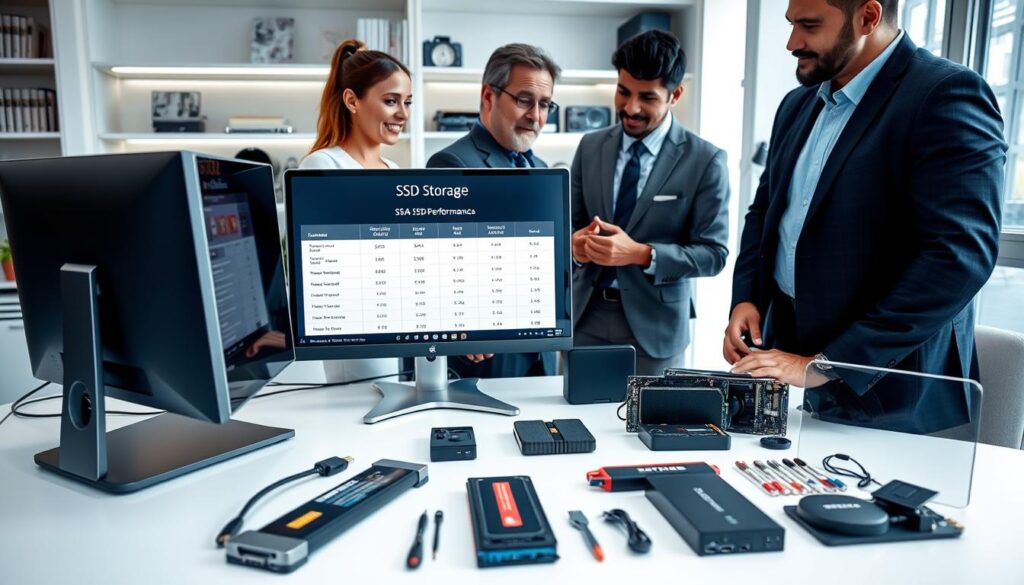
Installing SSD Storage in Your Computer
Upgrading your system with a solid-state drive can be a straightforward yet impactful process. Understanding the differences between internal and external drives is crucial before you begin.
Internal vs External SSDs
Internal SSDs connect directly to your motherboard via standard SATA, IDE, or M.2 interfaces. These drives are installed inside your computer, enhancing performance by providing faster data access.
On the other hand, external SSDs plug into USB, eSATA, or Thunderbolt ports, offering portable storage solutions. While SATA SSDs are common, newer M.2 drives utilize NVMe technology for higher speeds.
Installation Tips and Best Practices
When installing an SSD, consider these helpful tips:
- Decide whether to use an internal SSD that connects directly to your motherboard or an external SSD for portable storage.
- Prepare for a straightforward installation, especially with M.2 NVMe drives that simply slot into the motherboard and require just one screw.
- Gather any necessary adapters or drive bay enclosures if installing a 2.5-inch SATA SSD into a desktop originally designed for larger 3.5-inch hard drives.
- Handle your SSD carefully by the edges, avoiding contact with the gold connector pins, and ground yourself to prevent static electricity damage.
- Many modern M.2 NVMe SSDs come with integrated heatsinks to manage temperatures during high-speed data transfers, crucial for gaming and content creation.
- Clone your existing hard drive to your new SSD using free software tools before installation to ensure a seamless transition without losing files.
- External SSDs offer a simple plug-and-play experience, providing fast additional storage without opening your computer case.
- After installation, verify that your operating system recognizes the new SSD and enable TRIM support to maintain long-term performance.
Maintaining and Extending the Life of Your SSD Storage
To ensure your solid-state drive continues to perform optimally, it’s crucial to implement effective maintenance strategies. Proper care can help you maximize both the lifespan and performance of your SSD.
One of the key aspects of maintaining your SSD is to keep at least 10-20% free space. When SSDs approach full capacity, they can slow down significantly. This free space allows the drive to manage data more efficiently.
It’s important to remember that your SSD has a finite number of write cycles. However, with normal use and wear-leveling technology, most consumer drives will last many years beyond their warranty period. Avoid using your SSD for long-term archival purposes. NAND flash cells can slowly leak charge when left unpowered, leading to potential data loss after one to two years.
Enabling the TRIM command in your operating system is another effective strategy. This command helps the SSD controller manage garbage collection efficiently, maintaining consistent write performance over time.
Monitoring your drive’s health is essential. Use free tools that report TBW (terabytes written) and overall drive status based on JEDEC-established reliability standards. Being proactive can prevent unexpected data loss.
Be mindful of high temperatures, as they can accelerate data degradation in unpowered SSDs. Store backup drives in a cool, dry environment whenever possible to ensure their longevity.
Enterprise-grade SSDs come with overprovisioning and advanced wear-leveling algorithms, designed to withstand years of demanding continuous use in data center environments. Regularly updating your SSD firmware can also enhance performance, fix bugs, and extend the operational life of your drive.
Common SSD Storage Misconceptions
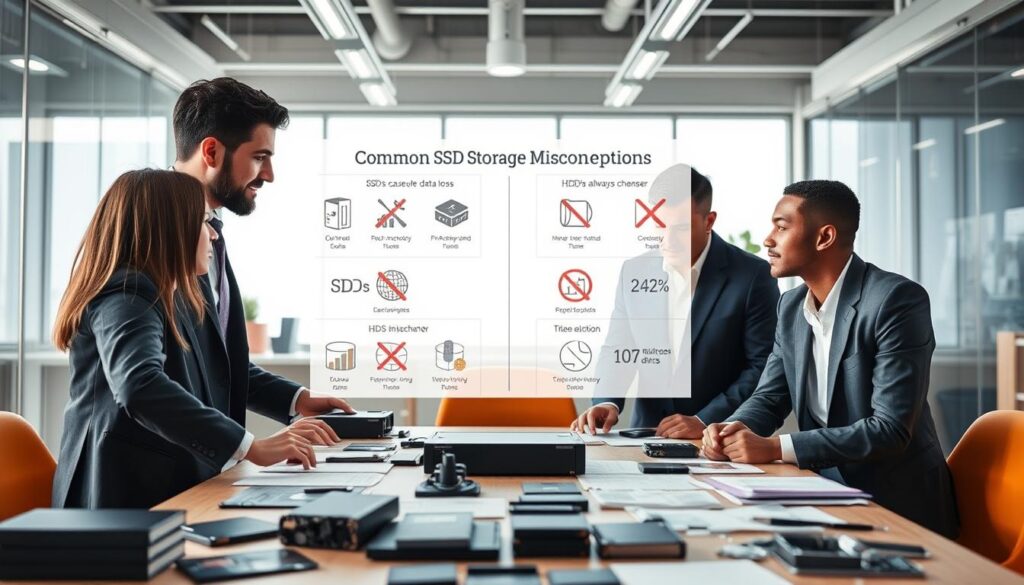
Many misconceptions surround the world of solid-state drives, leading to confusion among users. Understanding the truths about these drives can help clarify their actual performance and reliability. While SSDs offer numerous advantages, several myths persist that may deter potential users from embracing this technology.
- Myth 1: SSDs fail without warning.
- Myth 2: SSDs are immune to data loss.
- Myth 3: Power interruptions are not a concern.
- Myth 4: Write limits are a constant worry.
- Myth 5: Defragmenting an SSD is beneficial.
- Myth 6: SSDs need to be “broken in.”
- Myth 7: SSDs are too expensive.
- Myth 8: SSD failure modes are the same as hard drives.
While traditional hard drives often show signs of mechanical failure, modern SSDs provide health warnings through SMART monitoring data. This feature helps users anticipate potential issues.
While they generally have lower failure rates than traditional drives, SSDs can still experience uncorrectable errors and firmware bugs. Awareness of these risks is essential.
Sudden power outages can cause aborted writes or, in rare cases, complete drive loss. Investing in an uninterruptible power supply (UPS) is a wise choice for protecting your data.
Typical consumer usage patterns mean most SSDs will outlast the computers they are installed in. There’s no need to stress about write limits for everyday tasks.
Defragmenting is unnecessary and can reduce an SSD’s lifespan by consuming valuable write cycles without any performance gain.
SSDs deliver peak performance right out of the box, with no special preparation required.
Prices have dropped significantly, making SSDs accessible for virtually any computer budget. They are now a viable option for most users.
While SSDs have different failure modes, the technology has matured, making them the recommended primary storage for nearly all computing scenarios.
Understanding these misconceptions is crucial for anyone considering an upgrade to solid-state drives. By debunking these myths, users can make informed decisions about their data storage needs.
| Myth | Truth |
|---|---|
| SSDs fail without warning | Modern SSDs provide health warnings through SMART data. |
| SSDs are immune to data loss | They can experience errors and firmware bugs. |
| Power interruptions are not a concern | They can cause aborted writes and data loss. |
| Write limits are a constant worry | Most SSDs outlast the computers they are in. |
| Defragmenting an SSD is beneficial | It can actually reduce lifespan. |
| SSDs need to be “broken in” | They perform well right out of the box. |
| SSDs are too expensive | Prices have become more affordable. |
| SSDs fail like hard drives | They have different failure modes and are reliable. |
Emerging Trends and the Future of SSD Storage
The future of solid-state drives is bright, with trends indicating significant improvements in performance and capacity. Innovations in NAND flash technology are driving these advancements, making SSDs more efficient and reliable than ever.
Look ahead to the exciting future of SSD storage, where Gen5 drives already achieve mind-boggling speeds of up to 15GB/s—a sixty-fold improvement over SSDs from just a decade ago. This remarkable leap in performance is set to redefine how we interact with our devices.
Manufacturers are pushing toward higher layer counts and greater storage density in ever-smaller form factors. This evolution will allow for even more compact and powerful drives that fit seamlessly into a variety of devices.
Additionally, storage class memory (SCM) technologies, like Intel’s 3D XPoint, are paving the way for ultra-fast persistent memory that blurs the line between storage and RAM. This could revolutionize how data is accessed and processed, leading to faster and more efficient computing.
Expect managed storage as a service to transform how businesses handle their data. Gartner predicts that over 40% of on-premises IT storage administration will be replaced by such services by 2025. This shift will streamline operations and enhance data management.
Hybrid approaches, such as solid-state hybrid drives (SSHDs) and dual-drive systems like Apple’s Fusion Drive, combine the speed of flash with the capacity of traditional hard drives. This flexibility allows users to benefit from both technologies, optimizing performance and cost.
SSDs are also playing a growing role in distributed computing. They serve as burst buffers and cache layers that absorb massive volumes of user requests before they reach slower backend storage systems. This capability enhances performance and reduces latency in data-heavy environments.
As we follow the development of new form factors like EDSFF and XFM Express, we can expect even greater flexibility and performance for enterprise and consumer devices alike. The future looks promising for these technologies.
Envision a near future where SSD storage becomes the universal standard. Traditional hard drives may find themselves relegated to niche roles in cold storage and archival applications. The advancements in SSD technology will likely make them the go-to choice for all types of computing needs.
Conclusion
The landscape of data storage is changing, highlighting the need for reliable and speedy solutions. Solid-state drives have transformed the way we interact with technology, offering remarkable performance and efficiency. While they may come at a higher cost per gigabyte than traditional hard drives, the benefits they provide are undeniable.
With their combination of speed, silent operation, and energy efficiency, these drives are the best choice for your computer’s primary drive. A balanced approach, using an SSD for your operating system and a larger hard drive for media storage, can optimize your setup.
Upgrading to an SSD is one of the most impactful improvements you can make to any computer, breathing new life into older systems. As technology continues to evolve, embracing solid-state drives will ensure you stay ahead in the digital world.
FAQ
What is the main difference between SSDs and traditional hard drives?
The primary difference lies in the technology used. SSDs utilize flash memory, allowing for faster read and write speeds, while traditional hard drives rely on spinning disks and moving parts, making them slower and more prone to mechanical failure.
How does the speed of SSDs impact computer performance?
SSDs significantly enhance computer performance by reducing load times and speeding up file transfers. This results in quicker boot times and improved responsiveness when launching applications.
Are SSDs more reliable than hard disk drives?
Yes, SSDs are generally more reliable because they lack moving parts, which reduces the risk of mechanical failure. They also have better resistance to shock and vibrations, making them ideal for portable devices.
What are the different types of SSDs available?
There are several types of SSDs, including SATA, PCIe, and NVMe. Each type varies in speed and performance, with NVMe offering the highest data transfer rates.
How do I choose the right SSD for my computer?
Consider your storage capacity needs, performance requirements, and budget. It’s essential to select an SSD that meets your specific usage scenarios, whether for gaming, professional work, or general use.
Can I install an SSD myself?
Yes, installing an SSD can be a straightforward process. You can choose between internal and external options, and there are plenty of online guides to help you with installation tips and best practices.
How can I extend the life of my SSD?
To extend the lifespan of your SSD, avoid filling it to maximum capacity, keep it updated with the latest firmware, and regularly monitor its health using software tools.
Are there any common misconceptions about SSDs?
One common misconception is that SSDs have a limited lifespan due to write cycles. While it’s true they have a finite number of writes, modern SSDs are designed to last for many years under typical usage conditions.
What trends are shaping the future of SSD technology?
Emerging trends include advancements in NAND flash technology, increasing capacities, and faster interfaces like PCIe 4.0 and 5.0, which promise even higher performance and efficiency in data storage.